

Live Search theme selectors
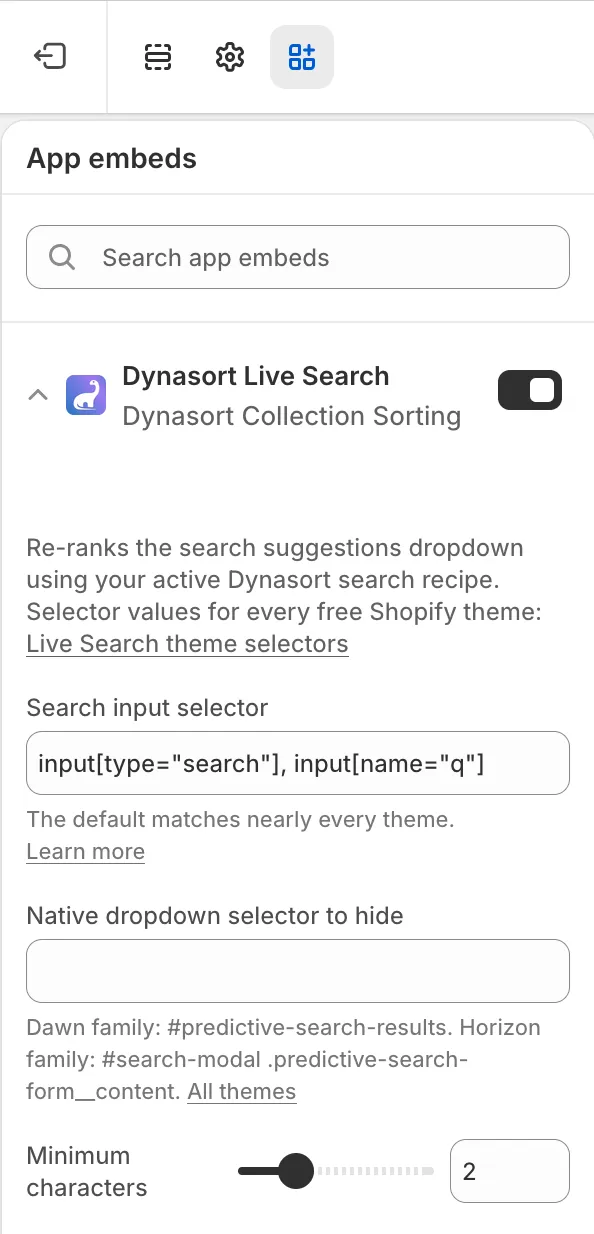
The Dynasort Live Search app embed re-ranks the suggestion dropdown that appears while a shopper types. To do that on any theme, it needs to know two things, both set in the theme editor under Theme settings → App embeds → Dynasort Live Search:
- Search input selector: which search box(es) to attach to. The default (
input[type="search"], input[name="q"]) matches nearly every theme, including all of Shopify’s free themes. You almost never need to change it. - Native dropdown selector to hide: your theme ships its own suggestion panel. Without this setting, both panels appear stacked on top of each other. Set it to your theme’s suggestion container and Dynasort’s re-ranked suggestions take over cleanly.
Those two settings apply to the default mode, where Dynasort shows its own dropdown. If you would rather keep your theme’s dropdown and only reorder its products, see Re-rank the theme’s own dropdown below.
Selectors by theme
Section titled “Selectors by theme”| Theme | Search input selector | Native dropdown selector to hide |
|---|---|---|
| Dawn, Craft, Sense, Studio, Refresh, Spotlight, Ride, Taste, Crave, Origin, Colorblock, Publisher | (leave default) | #predictive-search-results |
| Horizon, Savor, Tinker, Beyond, Vessel | (leave default) | #search-modal .predictive-search-form__content |
On the Horizon family, search opens in a full modal rather than a dropdown. Dynasort detects this and renders its suggestions inside the modal, right where the theme’s own results would have appeared. No extra configuration is needed beyond the selector above.
This table grows as we verify more themes. If your theme is not listed, email us at hello@dynasort.io with your theme’s name and we will test it and add it here.
Finding the selectors on any other theme
Section titled “Finding the selectors on any other theme”- On your storefront, right-click the search box and choose Inspect.
- Check the highlighted
<input>element. If it hastype="search"orname="q", the default input selector already matches and you can leave it alone. - Type a couple of characters so your theme’s own suggestions appear.
- In the inspector, find the container element that holds those suggestions and note its
idor a distinctive class. - Enter it in the embed’s Native dropdown selector to hide field, prefixed with
#for an id (for example#predictive-search-results) or.for a class. - Save, reload the storefront, and type again. You should see one suggestion panel: Dynasort’s.
Re-rank the theme’s own dropdown
Section titled “Re-rank the theme’s own dropdown”The embed has two modes, chosen with the Mode setting:
- Dynasort dropdown (replaces the theme’s): the default. Dynasort hides your theme’s suggestion panel and shows its own, using the selectors in the table above.
- Re-rank the theme’s own dropdown: your theme keeps its dropdown exactly as designed, including tabs, query suggestions, product type filters and price markup. Dynasort reorders only the product rows inside it, using your active search recipe.
When to choose it
Section titled “When to choose it”Choose re-rank mode when your theme’s dropdown does more than list products and you want to keep all of it: tabbed results, a product type filter, a styled suggestions column, or custom price and badge markup. Choose the Dynasort dropdown when you want the recipe to decide which products appear as well as their order, or when your theme’s dropdown is plain and you prefer Dynasort’s swatches, badges and display settings.
Settings
Section titled “Settings”Re-rank mode uses two selector settings in the embed:
- Theme product list selector (re-rank mode): the element that holds the theme’s predictive product results. Required; without it the mode does nothing.
- Theme product item selector (re-rank mode): one product row inside that list. Defaults to
li. Rows without a product link, such as a “View all” row, stay where they are.
The Native dropdown selector to hide is not used in this mode, since nothing is hidden. The Search input selector still tells Dynasort which box the shopper is typing in.
| Theme | Theme product list selector | Theme product item selector |
|---|---|---|
| Enterprise | .predictive-search__tabpanel[id$="-products"] .predictive-search__list | .predictive-search__item |
How it behaves
Section titled “How it behaves”- Same products, new order. Re-rank mode can only reorder the products the theme already shows, up to the theme’s own limit (often 10). It never adds products the theme did not return.
- Hidden products go to the bottom. Products your recipe would hide, such as sold-out items, move to the end of the list rather than disappearing, so the theme’s content is never removed.
- New products keep their place. A product Dynasort has not synced yet stays after the ranked products, in the theme’s original order.
- No flicker, no risk. The product list stays invisible for a moment while it is ranked. If the answer takes longer than about 0.7 seconds, or the request fails, the theme’s original order is shown instead.
Finding the re-rank selectors on your theme
Section titled “Finding the re-rank selectors on your theme”- On your storefront, type a query so your theme’s dropdown shows products.
- Right-click one product row and choose Inspect.
- Walk up from the highlighted element to the row itself (often an
<li>). Note its class: that is your item selector. - Walk up one more level to the element that directly contains all the product rows. Note its class or id: that is your list selector. If the dropdown has several tabs or lists, include a parent that singles out the products list.
- Set Mode to Re-rank the theme’s own dropdown, enter both selectors, save, and type again. The product rows should now follow your search recipe’s order, which you can compare against Preview re-ranking in the recipe editor.
Troubleshooting
Section titled “Troubleshooting”- Two suggestion panels stacked: the hide selector is empty or does not match. Re-check step 4 above.
- No suggestions at all: the input selector does not match your theme’s search field. Inspect the input and adjust.
- Suggestions appear but the theme’s panel container leaves an empty gap: some themes reserve space for their panel. Contact support with your theme name; a small CSS override usually resolves it.
- Results-page grid works but the dropdown does not: the results grid is a separate app block; the dropdown comes from this embed. Confirm the embed is toggled on in Theme settings → App embeds.
- Re-rank mode is on but the order never changes: the list selector does not match the rendered page. Re-check it in the inspector after typing a query (see Take selectors from the rendered page), and confirm a search recipe is active in the Dynasort app.
Frequently asked questions
Which two settings does the Dynasort Live Search embed need?
A search input selector, which tells it which search box to attach to, and a native dropdown selector to hide, which removes the theme's own suggestion panel so only Dynasort's re-ranked suggestions appear. Both are set under Theme settings, App embeds, Dynasort Live Search.
Which hide selector do Dawn and the other free Shopify themes use?
For Dawn, Craft, Sense, Studio, Refresh, Spotlight, Ride, Taste, Crave, Origin, Colorblock and Publisher, leave the input selector at its default and set the hide selector to #predictive-search-results.
Which hide selector do Horizon-family themes use?
For Horizon, Savor, Tinker, Beyond and Vessel, set the hide selector to #search-modal .predictive-search-form__content. Dynasort detects the Horizon search modal and renders its suggestions inside it.
Why do I see two suggestion panels stacked?
The hide selector is empty or does not match your theme's suggestion container. Inspect the container that holds the theme's suggestions, note its id or class, and enter it prefixed with # for an id or . for a class.
Do I need to change the search input selector?
Almost never. The default, input[type="search"], input[name="q"], matches nearly every theme including all of Shopify's free themes.
My theme is not in the table. What should I do?
Follow the inspect steps on this page to find the selectors yourself, or email hello@dynasort.io with your theme's name and the Dynasort team will test it and add it to the table.
What does the Re-rank the theme's own dropdown mode do?
Your theme keeps its own predictive search dropdown exactly as designed, including tabs, query suggestions, product type filters and price markup. Dynasort only reorders the product rows inside it to match your active search recipe. Set Mode to Re-rank the theme's own dropdown in the Dynasort Live Search embed and fill in the theme product list selector.
Which selectors does re-rank mode use on the Enterprise theme?
Theme product list selector: .predictive-search__tabpanel[id$="-products"] .predictive-search__list. Theme product item selector: .predictive-search__item. The native dropdown selector to hide is not used in this mode.
Why do sold-out products still show in the dropdown in re-rank mode?
Re-rank mode never removes anything the theme shows. Products your recipe would hide, such as sold-out items, move to the bottom of the list instead of disappearing.
Can re-rank mode add products the theme's dropdown did not show?
No. It can only reorder the products the theme already returned, up to the theme's own limit, which is often 10. To control which products appear as well as their order, use the Dynasort dropdown mode.
My re-rank selector matches the theme files but nothing reorders. Why?
Some themes rename ids when they insert search results into the page. Take selectors from the rendered page in your browser's inspector after typing a query, not from the theme's Liquid files.