

Post-purchase Recommendations
The moment right after a purchase is one of the highest-intent moments a store gets: the customer is engaged, trusts you, and just told you exactly what they like. Post-purchase recommendations put a recipe-ranked “Complete Your Order” row on the Thank you page (order confirmation) and the Order status page, seeded by the items in the order.
How it works
Section titled “How it works”When a customer lands on the Thank you or Order status page, Dynasort looks at what they just bought and serves recommendations that pair with those items, ranked by the recipe you’ve bound to the placement. Items from the order itself are never recommended back.
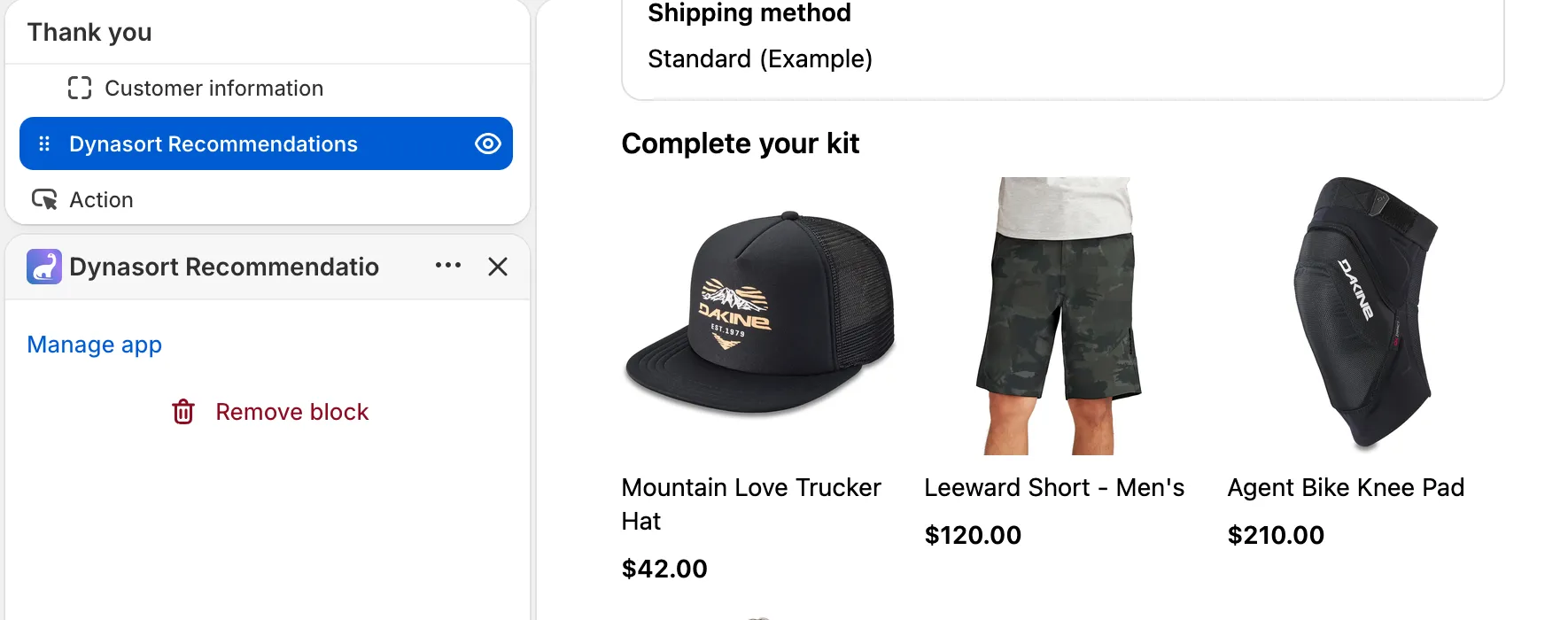
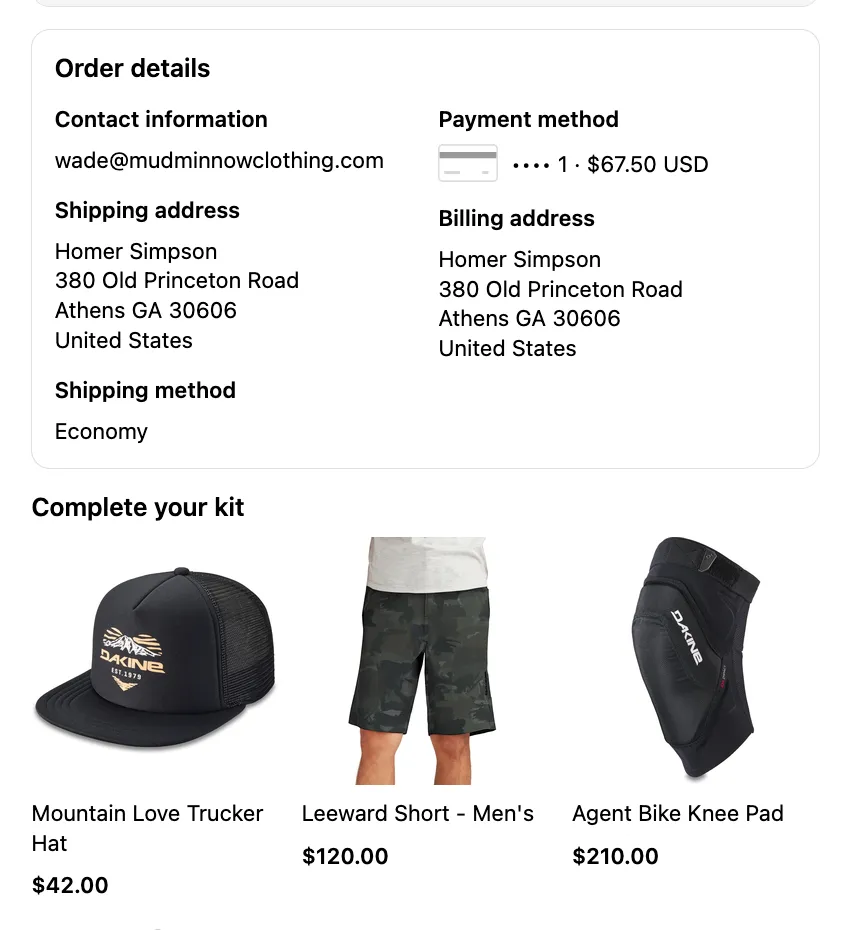
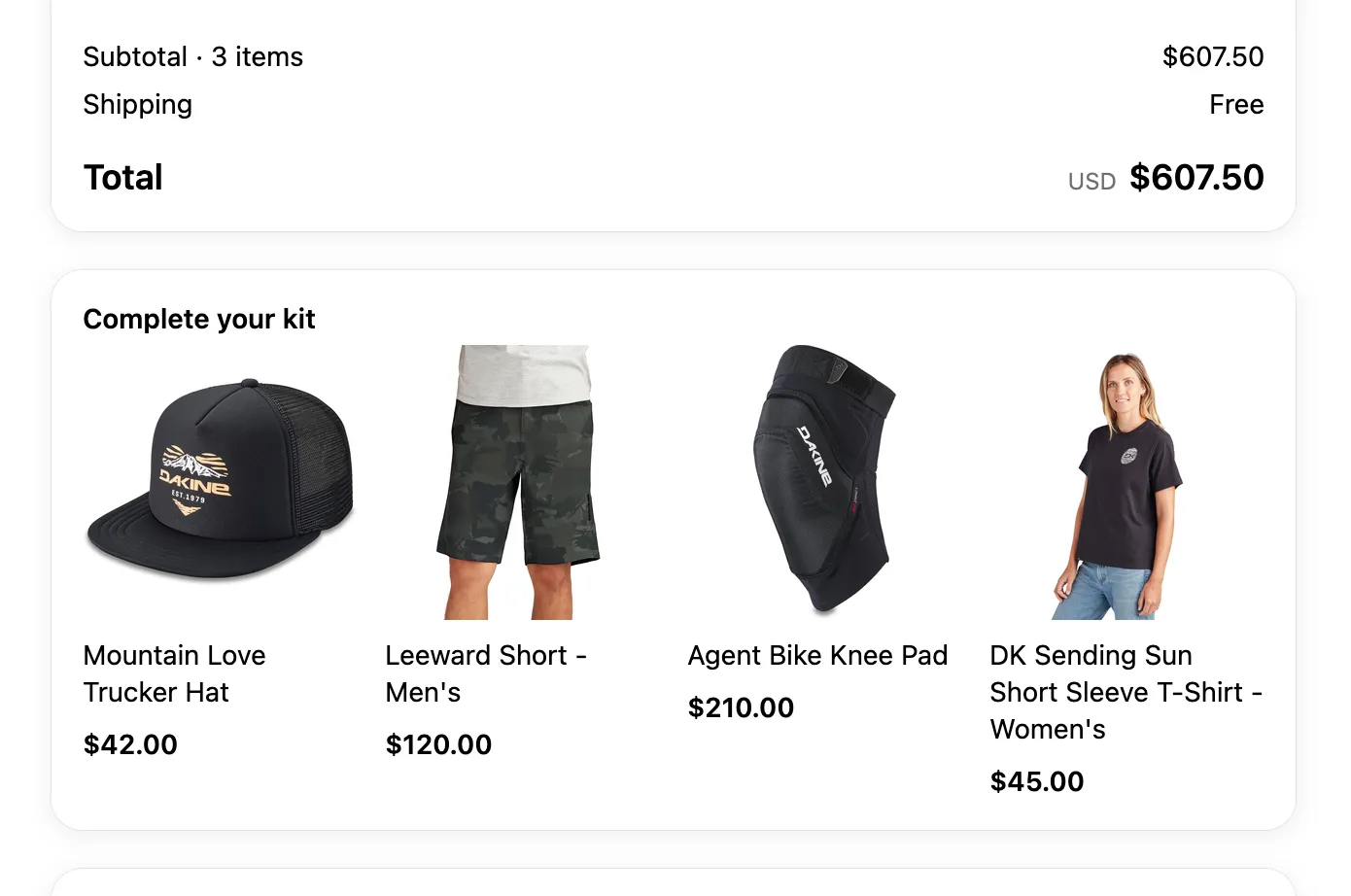
These pages are rendered by Shopify’s checkout system, not your theme, so the cards automatically follow your checkout’s typography and styling. The row shows each product’s image, title, and price, with an optional sale badge, and clicks go to the product page.
- Bind a recipe on the Recommendations page: the Post-purchase placement works like any other, pick a recommendation recipe and enable it. Cart-oriented recipes tend to fit this placement well.
- Add the block to your Thank you page: in Shopify admin, go to Settings → Checkout → Customize, switch the page picker to Thank you, and add the Dynasort Recommendations app block.
- Add it to the Order status page the same way, via the customer accounts editor, so customers returning to check their order see it too.
Settings
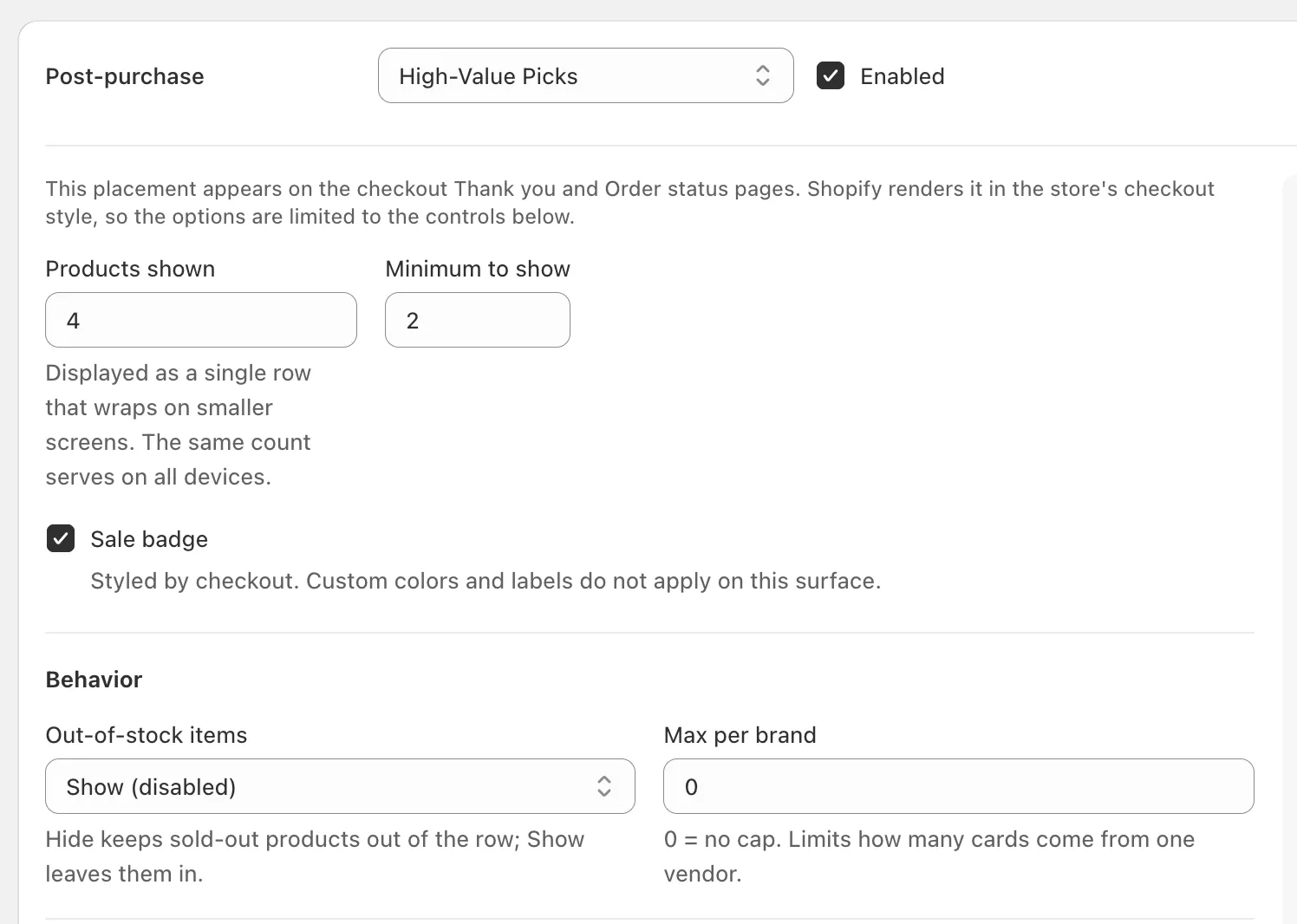
Section titled “Settings”The Post-purchase placement has a focused set of controls:
- Products shown: how many cards render (displayed as a single row that wraps on smaller screens).
- Minimum to show: below this count the block renders nothing rather than look sparse.
- Sale badge: on or off (checkout styles it; custom colors don’t apply on this surface).
- Out-of-stock items and max per brand: same behavior controls as other placements.
- Heading: the row title, translatable per language; it follows the language the customer checked out in.
Measuring results
Section titled “Measuring results”Post-purchase serves and card clicks are tracked like every other surface: open the bound recipe to see serves, clicks, and CTR in its serving performance table.
- Bind a recipe with complementary-purchase logic (like your cart placement’s recipe) rather than a bestsellers list; the customer just bought, so “goes well with what you got” outperforms “here’s what’s popular”.
- Keep Products shown modest (3 or 4). This surface rewards a confident short row, not a grid.
- If the block doesn’t appear after adding it, check that the placement is enabled and has a recipe bound in the app; an unbound placement renders nothing by design.
Frequently asked questions
Where do Dynasort post-purchase recommendations appear?
On the Thank you page shown right after checkout and on the Order status page customers return to. Both are rendered by Shopify's checkout, and the row is seeded by the items in the order.
How do I add the post-purchase block?
In Shopify admin go to Settings, Checkout, Customize, switch the page picker to Thank you and add the Dynasort Recommendations app block. Add it to the Order status page the same way through the customer accounts editor. In the Dynasort app, bind a recommendation recipe to the Post-purchase placement and enable it.
Why are swatches and quick add-to-cart missing on post-purchase cards?
Because Shopify checkout renders these pages, not your theme. The cards follow checkout typography and styling automatically and show image, title, price and an optional sale badge. Dynasort only shows the settings that work on this surface.
Will it recommend products the customer just bought?
No. Items from the order itself are never recommended back. The recipe pairs products with what was purchased.
The block does not appear on my Thank you page. Why?
Check in the Dynasort app that the Post-purchase placement is enabled and has a recipe bound. An unbound placement renders nothing by design.
How many products should a post-purchase row show?
Three or four. This surface rewards a confident short row, and a recipe with complementary-purchase logic outperforms a plain best-sellers list here.