

Push Rank to Metafields
Dynasort can publish each product’s rank — position, score, and percentile — as Shopify product metafields. Once enabled, these values are available anywhere Shopify metafields are: theme Liquid, the Storefront API, Flow conditions, third-party apps, and your own reports.
Use this when you want Dynasort’s ranking to drive something outside of collection sort order — a “Top 10” badge in your theme, a filter in a search app, a feed for a recommendation tool, or an export for analysis.
What gets published
Section titled “What gets published”For each opted-in recipe, Dynasort writes three metafields per product, all in the dynasort namespace:
| Metafield | What it is |
|---|---|
rank_position | The product’s 1-indexed position in the global ranking (1 = top). |
rank_score | The raw numeric score the recipe produced. Higher = better. |
rank_percentile | The product’s percentile among all ranked products (0–100). |
Position is the easiest value to use in themes (“Top 10”). Percentile is the most useful for relative comparisons across catalogs of different sizes. Score is the underlying number the others are derived from — useful if you want to apply your own thresholds.
Enabling for a recipe
Section titled “Enabling for a recipe”Open the recipe you want to publish and tick Push rank to metafields in the sidebar.
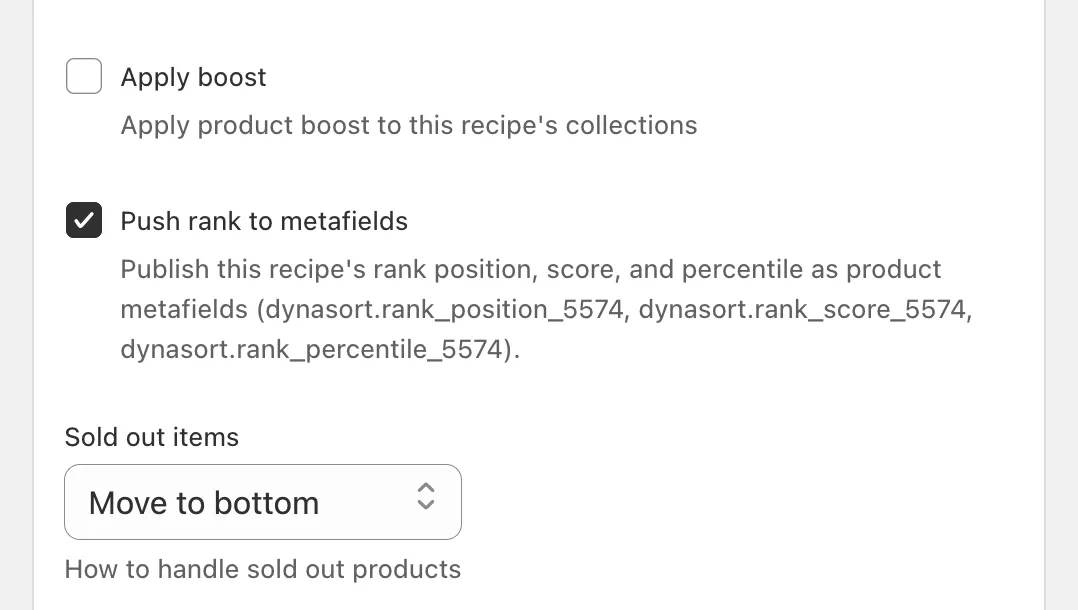
The help text under the checkbox shows the exact metafield keys this recipe will write. Save the recipe and a confirmation banner appears at the top of the page:
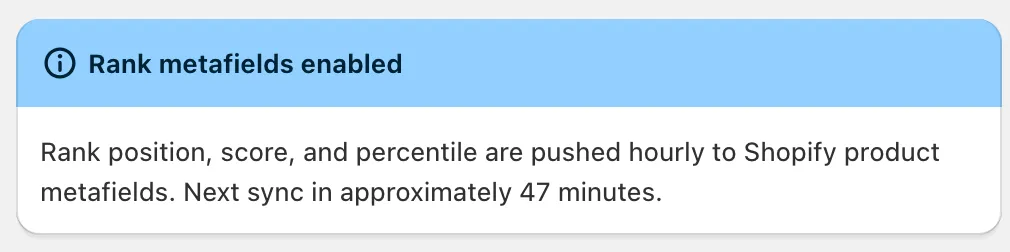
The banner shows how many minutes remain until the next sync. The first push happens on the next hourly cycle — there’s no manual trigger.
Sync schedule
Section titled “Sync schedule”Pushes run hourly. Each cycle re-ranks all products using the recipe’s current attributes and weights, then writes the three metafields per product. If a recipe’s attributes change, the next sync picks up the new ranking automatically.
There’s nothing to configure here — toggle the checkbox on, and the values stay current going forward.
Default vs. additional recipes
Section titled “Default vs. additional recipes”The metafield key naming depends on whether the recipe is your default or an additional recipe:
| Recipe type | Metafield keys |
|---|---|
| Default recipe | dynasort.rank_position, dynasort.rank_score, dynasort.rank_percentile |
Additional recipe (id 5574) | dynasort.rank_position_5574, dynasort.rank_score_5574, dynasort.rank_percentile_5574 |
The default recipe gets the bare keys because it represents your store’s primary ranking. Additional recipes get a _<id> suffix so multiple recipes can coexist on the same product without overwriting each other.
You can opt in to as many recipes as you want — each one adds three more metafields per product. A product viewed in the Shopify admin with both the default recipe and one additional recipe enabled looks like this:
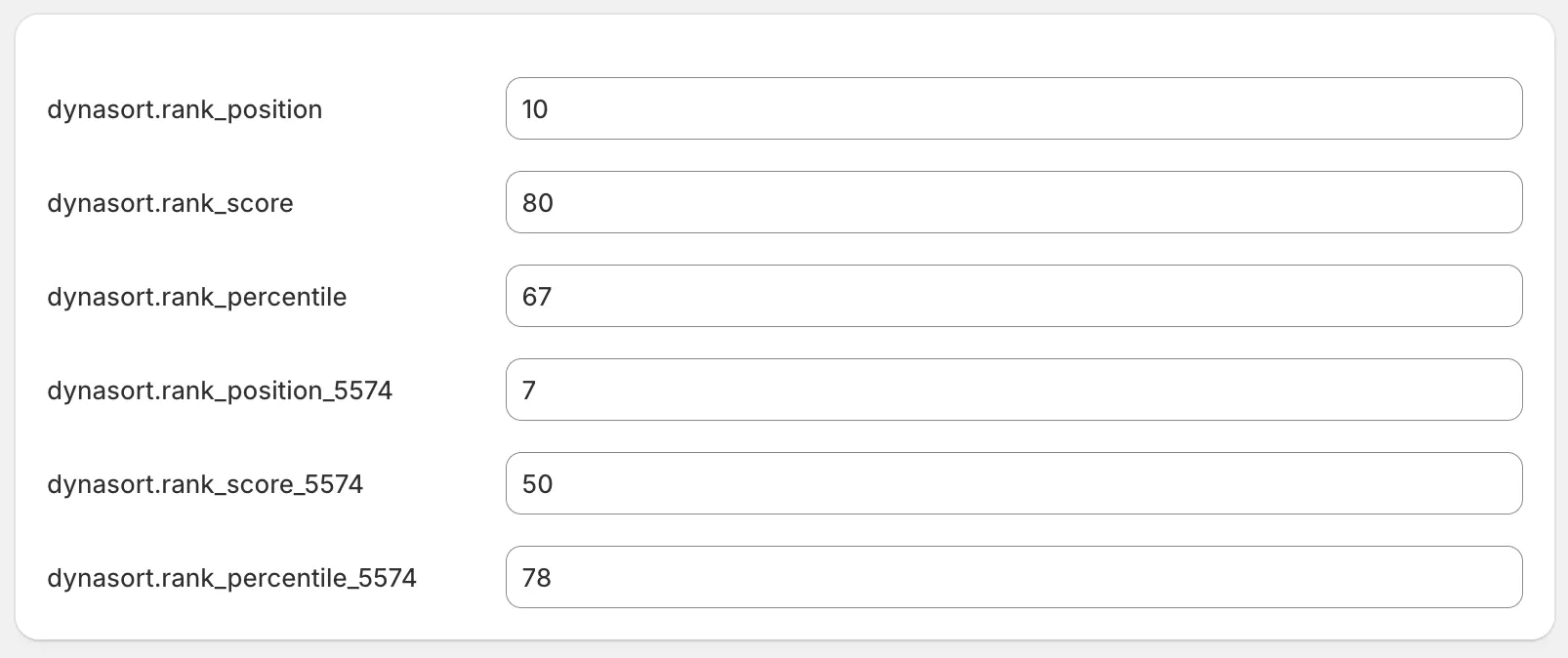
Running multiple recipes side-by-side is useful when you want to surface different orderings in different places — for example, the default recipe drives your collection sort, while a “Maximize Profit” recipe powers a homepage carousel of your highest-margin products.
Using the metafields
Section titled “Using the metafields”Once published, the metafields work like any other product metafield. A few common uses:
- Theme Liquid — read
product.metafields.dynasort.rank_positionto show a badge or filter products in a section. - Shopify Flow — trigger an action when
dynasort.rank_percentilecrosses a threshold (e.g. notify the buying team when a product drops out of the top quartile). - Storefront API / headless — query the metafield alongside the product to power custom storefronts.
- Third-party apps — many search, recommendation, and reporting apps can read product metafields as inputs.
- Make sure the recipe you’re pushing matches the one that’s actually applied to your collections. Otherwise the metafield values will reflect a different ranking than what shoppers see.
- Use additional recipes for parallel rankings, not experiments. For comparing two recipes head-to-head, A/B Testing is the right tool — it measures shopper behavior rather than just publishing values.
- Disable when you no longer need it. Turning the checkbox off stops new writes, but existing metafield values stay on your products until you remove them in the Shopify admin or via the Admin API.
Frequently asked questions
Which metafields does Dynasort write when Push Rank is enabled?
Three product metafields in the 'dynasort' namespace: rank_position (1 = top of the global ranking), rank_score (the raw recipe score, higher is better) and rank_percentile (0 to 100 among all ranked products).
How often are the rank metafields updated?
Hourly. Each cycle re-ranks all products with the recipe's current attributes and weights and rewrites the three metafields. The first push happens on the next hourly cycle after you save the recipe; there is no manual trigger.
How are metafields named for additional recipes?
The default recipe writes the bare keys such as dynasort.rank_position. Every additional recipe adds its id as a suffix, for example dynasort.rank_position_5574, so several recipes can publish rankings on the same product without overwriting each other.
How can I show a Top 10 badge in my theme?
Read product.metafields.dynasort.rank_position in Liquid and show the badge when the value is 10 or lower. The same metafields are available to Shopify Flow, the Storefront API and any app that reads product metafields.
Is the published rank per collection or store-wide?
Store-wide. The position, score and percentile describe where the product sits in the recipe's ranking of the whole catalog, not within one collection.
What happens when I turn Push Rank off?
Dynasort stops writing new values. The existing metafield values stay on your products until you remove them in the Shopify admin or through the Admin API.